

Heltec V3/V4 WiFi LoRa 32 868MHz Development Board With Dual Antenna Meshtastic Bluetooth For Meshcore Arduino PlatformIO
2PCS V4 dual antenna / 863-928MHz
Sale price
$139.59
Regular price $268.45
Skip to product information


Heltec V3/V4 WiFi LoRa 32 868MHz Development Board With Dual Antenna Meshtastic Bluetooth For Meshcore Arduino PlatformIO
Sale price
$139.59
Regular price $268.45
Shipping calculated at checkout.
Free Shipping on Orders of $100 or More
SPECIFICATIONS
Accessory Type: USB To DC Cable
Battery Included: no
Brand Name: Heltec Automation
Choice: yes
Compatible With: lora
High-concerned chemical: none
Origin: Mainland China
Typical Application Fields: Internet of Things (IoT)
semi_Choice: yes
If you don't know how to flash, please watch the following video
Note: Version 4.3
Please ensure your board enters Bootloader mode before flashing. Here’s how:
Connect the USB-C cable, then hold down the PRG button, press the RST button once, and release the PRG button. After that, flash the firmware. Once the flashing is complete, remember to restart the device.
Hardware version 4.3 requires new firmware.
If you are using Heltec’s development framework, please update the board package and LoRa library to the latest via GitHub.
Specifications
Parameters |
Description |
MCU |
ESP32-S3R2 (Xtensa®32-bit lx7 dual core processor) |
LoRa Chip |
SX1262 |
Frequency |
High-power version: 863-928MHz |
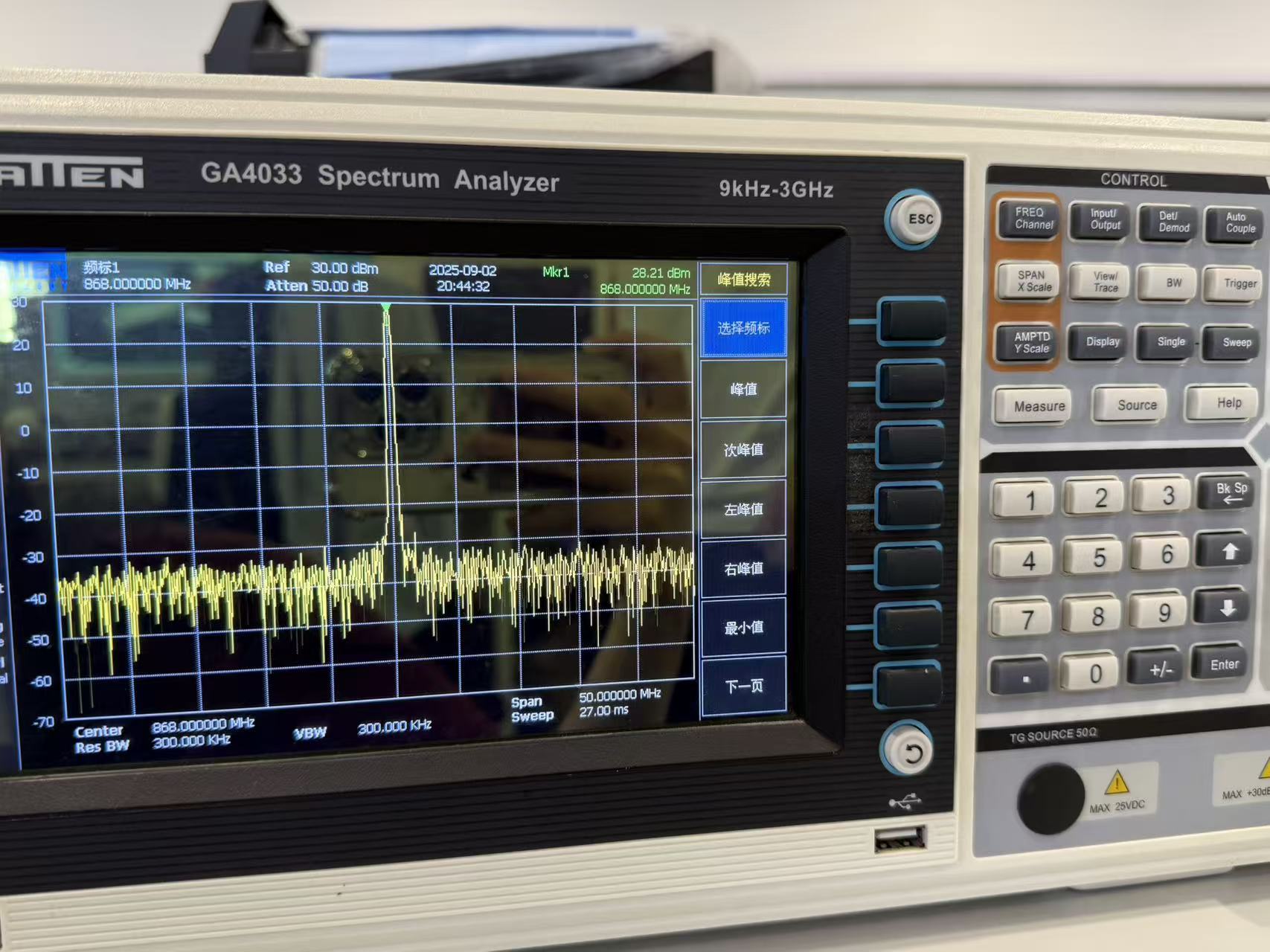
Max. TX Power |
High-power version: 28 ±1 dBm |
Max. Receiving sensitivity |
-137dBm@SF12 BW=125KHz |
Wi-Fi |
802.11 b/g/n, up to 150Mbps |
Bluetooth |
Bluetooth (LE), Bluetooth 5, Bluetooth Mesh |
Hardware Resource |
7*ADC1 + 2*ADC2; |
Memory |
384KB ROM; 512KB SRAM; 16KB RTC SRAM; 2MB PSRAM; 16MB Flash |
Interface |
Type-C USB; |
Battery applicable |
3.3-4.4V lithium battery |
Operating Temperature |
-20 ~ 70 ℃ |
Dimensions |
51.7 * 25.4* 10.7mm |
Layout
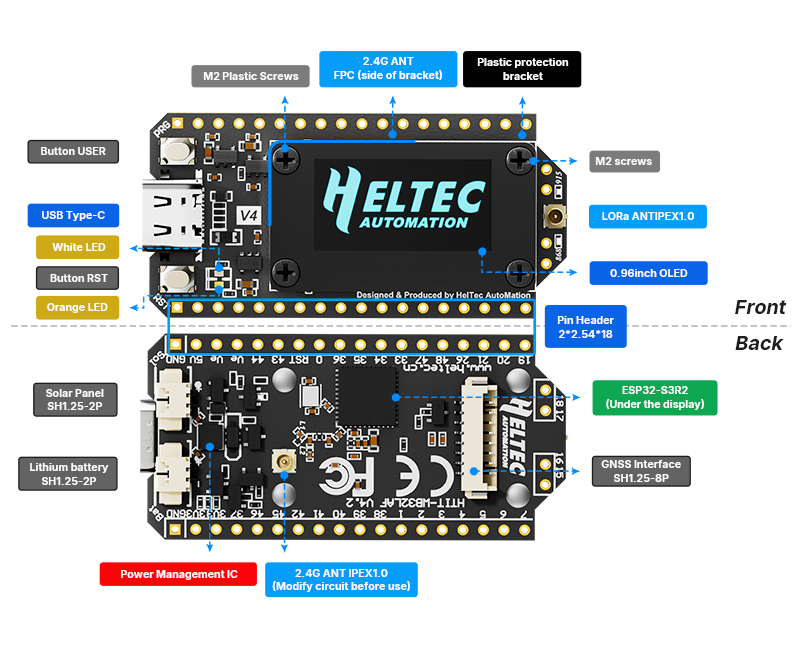
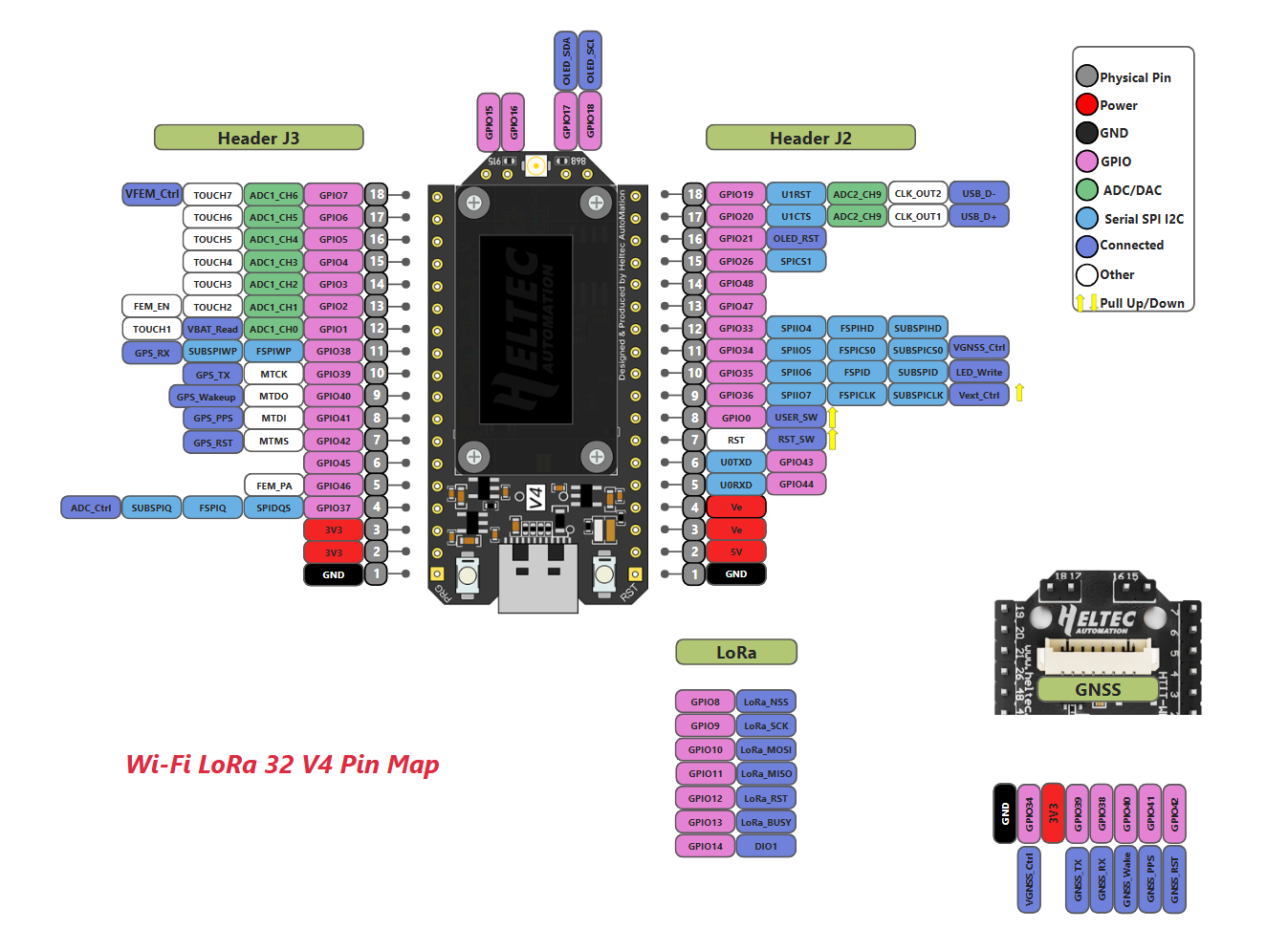
Pin Map


FAQ
1.“LoRa Error”
It does not indicate device damage. Please disregard this phenomenon. The LORA ERROR occurs because it is running the factory default LORA testing program and cannot find another device running the same program.
2.Failed to flash firmware or upload code.
Enter BootLoader mode: Connect the USB-C cable, hold down the PRG button, press the RST button once, then release the PRG button.
Replace a USB data cable.
Change the port on the computer.
3.Firmware for V4.3.
Hardware version 4.3 requires new firmware.
Schematic of V4.3, please consult customer service
4.Enable or Disable LNA.
Note: The following content only applies to hardware V4.3 and above
Meshtastic 2.7.20: On the device, use the PRG button to navigate to “System” → “LoRa”, where you can choose to enable or disable LNA.
-
MeshCore 1.15.0: LNA is enabled by default and cannot be modified.
You can download the firmware from this link, which has LNA disabled by default: The link cannot be displayed. Please consult customer service
With the firmware from this link, LNA can be toggled via button long press: The link cannot be displayed. Please consult customer service
We have submitted a PR. In the near future, official firmware will also support toggling LNA via command line or button.
5.The screen does not display.
Please note: “Meshtastic UI” is for use with the touchscreen. For ordinary OLED screens, please do not Select it.
