

Case for Samsung Galaxy Tab S9 FE 10.9inch Detachable Bluetooth Keyboard Case For Samsung Tab S9 FE 10.9inch SM-X510/X516B
Black D / Korean keyboard
Sale price
$90.33
Regular price $180.65
Skip to product information


Case for Samsung Galaxy Tab S9 FE 10.9inch Detachable Bluetooth Keyboard Case For Samsung Tab S9 FE 10.9inch SM-X510/X516B
Sale price
$90.33
Regular price $180.65
Shipping calculated at checkout.
Free Shipping on Orders of $100 or More
SPECIFICATIONS
Application Laptop Size: 10.9inch
Battery Included: Yes
Brand Name: HUAIBX
Choice: yes
Compatible Brand: SAMSUNG
Compatible model 1: Samsung Tab S9 FE 10.9inch(SM-X510 X516B)
Feature: Waterproof,Shockproof,Drop resistance,Anti-Dust
High-concerned chemical: None
Material: TPU
Model Number: HUAIBX case For Samsung Galaxy Tab S9 FE 10.9inch
Origin: Mainland China
Package: Yes
Pattern Type: Solid
Rechargeablebatteryincluded: Yes
Style: fashion
Type: With Keyboard
Please confirm your machine model before purchasing~
For Samsung Tab S9 FE SM-X510/X516B 10.9-inch tablet
Please note
English Keyboard: There are only English letters on the keyboard.
Multilingual version keyboard: English letters and inscribed language letters together.
NOTE: Digital tablet and stylus are not included in the package. Detailed descriptions are for reference only. Please refer to the actual product for product color.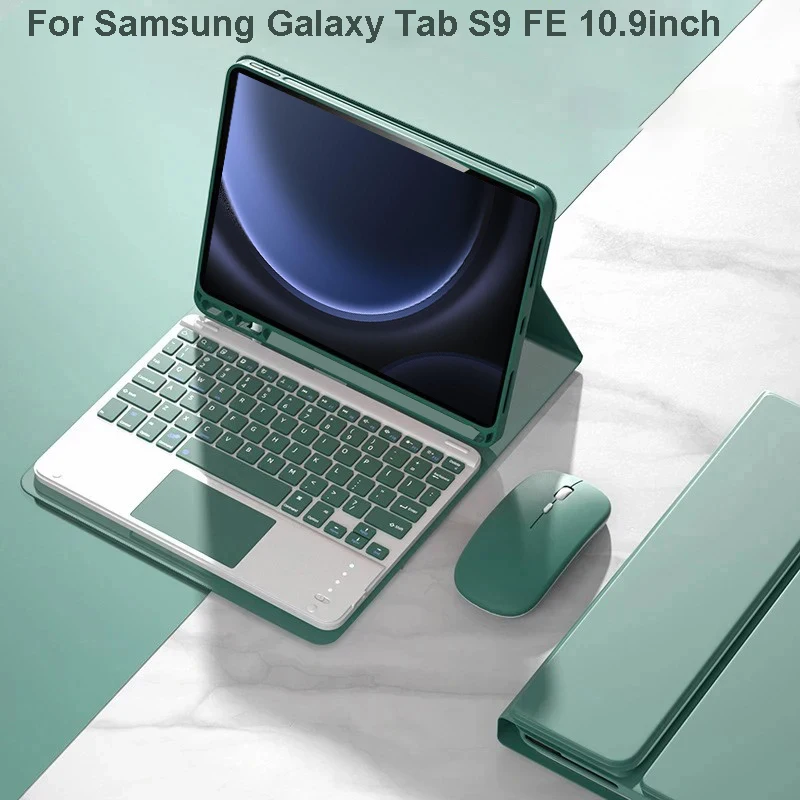 Notebook button quiet and comfortable rebound
The notebook the same key structure micro grinding tactility,typing feel is good Ready to use,suitable for all your occasions
 Cellular heat dissipation
Honeycomb cooling design keep the ipad temperature normal More View Angles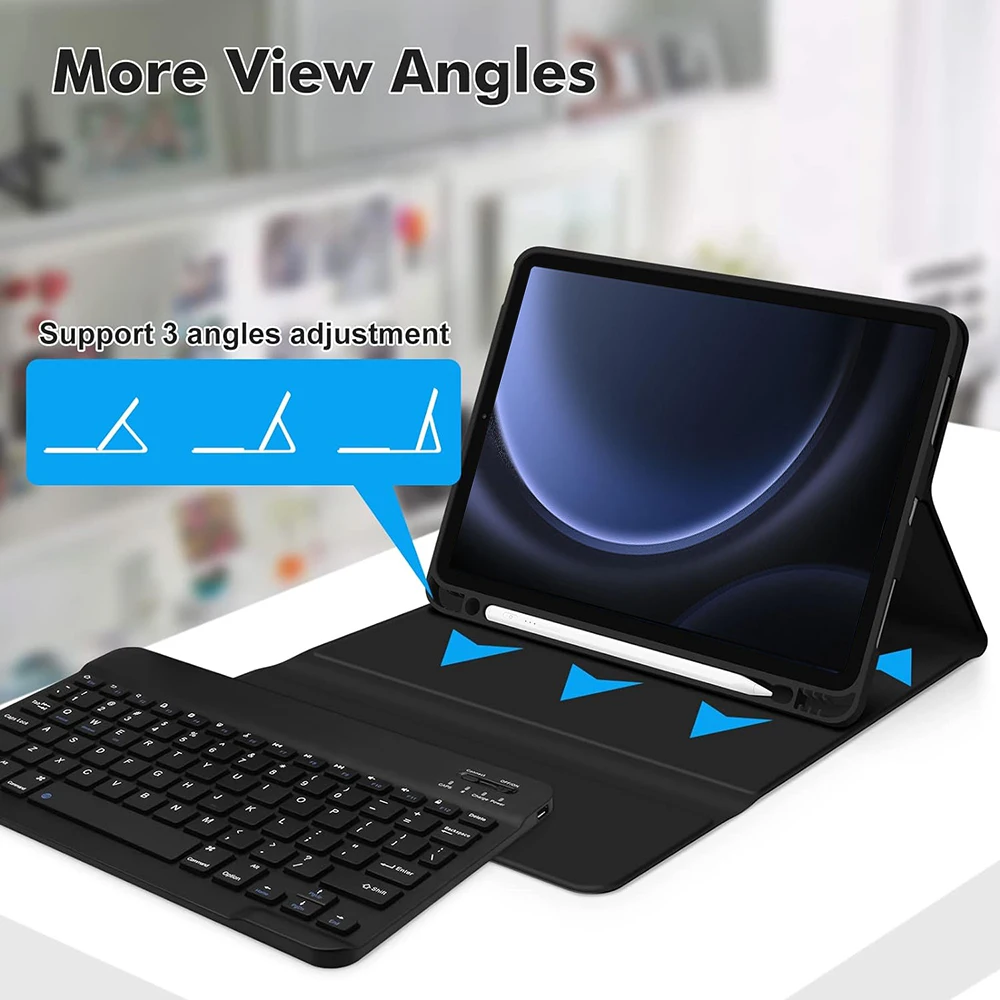
 Colourful
A colour that's just right for you
A wide range of colours to add a touch of chic to your day.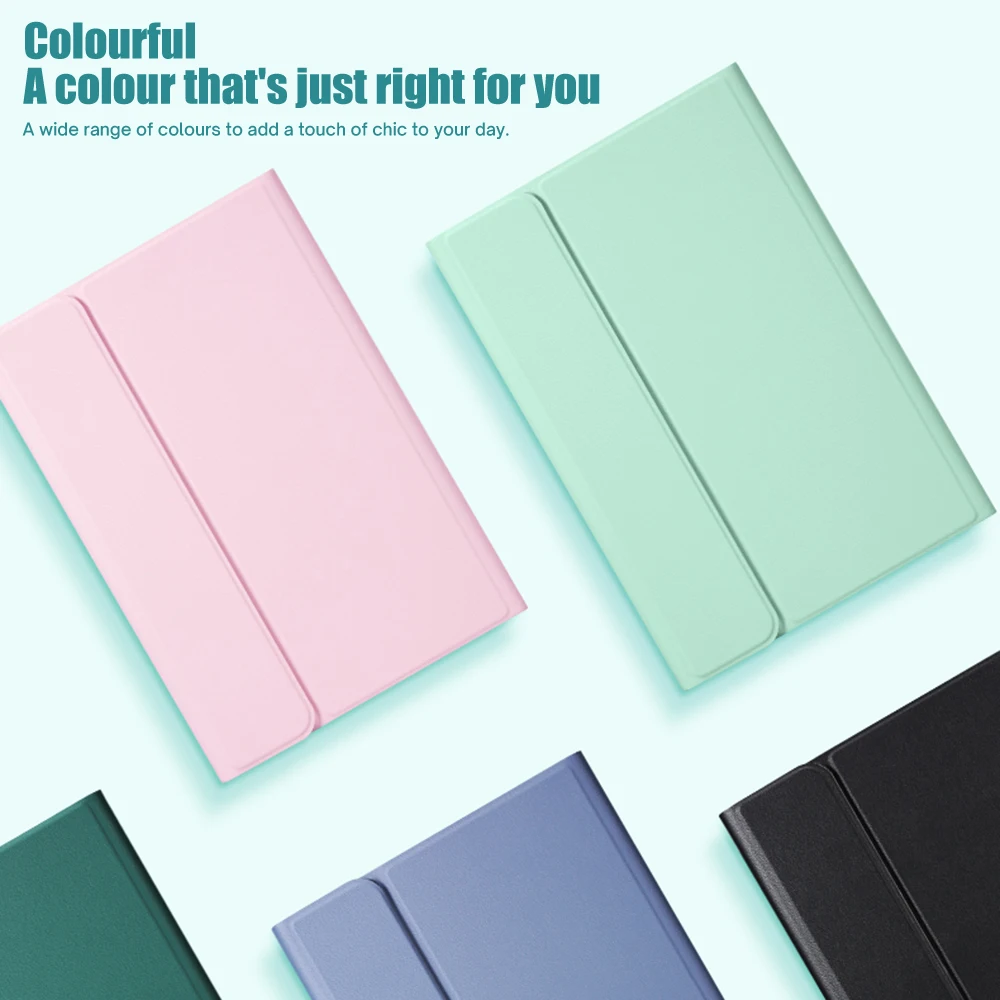
 Bluetooth direct connection
Tablet becomes notebook
The delay-free keyboard connects to any Bluetooth device How to connect keyboard & Mouse?
1,Connect the mouse first, then connect the keyboard.
2,Mouse:Push the switch to the "Bluetooth" icon, find the Bluetooth connection with "Mouse" in the device Bluetooth list.
3,Normal Keyboard:Push the switch in the upper right corner to "ON", press "Connect", and find the Bluetooth connection with "Keyboard" in the device Bluetooth list.
4,Touchpad Keyboard:turn on keyboard ,press Fn+C to,then find the Bluetooth connection with "Keyboard" in the device Bluetooth list. FAQ
FAQ
Q:What should I pay attention to when connecting the mouse for the first time?
A:When the mouse is connected for the first time, you need to press the left button, the right button and the scroll wheel at the same time for about 3-5 seconds.
Q: Is the scroll direction of the mouse USB connector and Bluetooth connection the same?
A: No, they are different. When using the USB connector, the scroll wheel slides in the same direction as the computer mouse. Bluetooth connection is the opposite.
Q: How to switch between different systems?
A: Fn+Q=Android, Fn+W=Windows, Fn+E=IOS.
Please note that please switch the system before connecting the tablet.
Q:The bluetooth keyboard letters are messy?
A: Please check the settings according to the prompts,
a. Check whether the keyboard language set on the device is English.
b. Disconnect the keyboard Bluetooth, click Ignore the connected device, reopen the Bluetooth keyboard, select system, Fn+E (IOS system).
Note: Fn+Q=Android, Fn+W=Windows, Fn+E=IOS
c. Press the L S Z buttons at the same time to reset the keyboard
Q:How to configure the input method for different languages keyboard?
A:Take the samsung tablet as example,open "Settings--"ystem"--"Language & input"--"Add New Keyboard". (For other systems, please set them in the system settings according to the tips of the iPad example.)
Q:How does the mouse change teh scroll wheel sliding direction on the device?
A: The mouse is connected, open "General" - "Trackpad & Mouse" - close "Natural Scrolling".